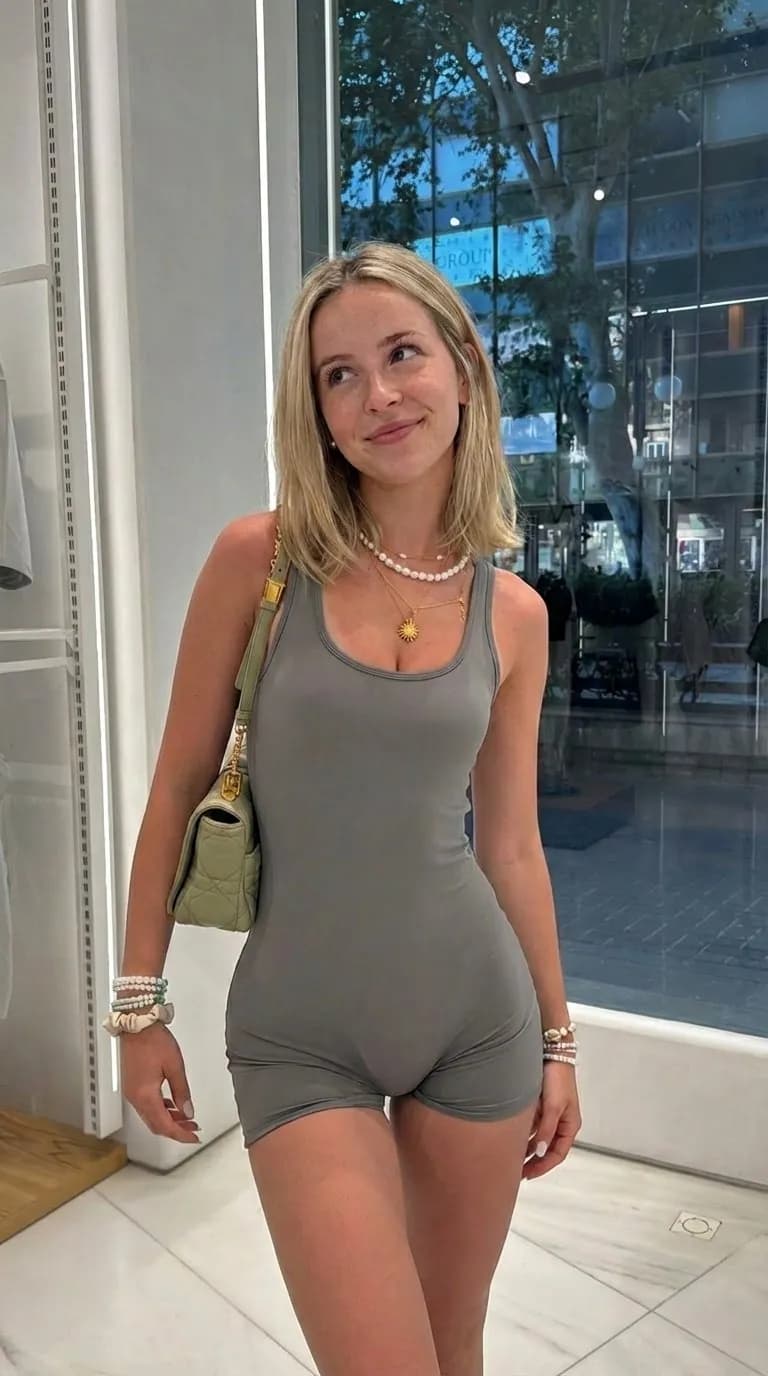
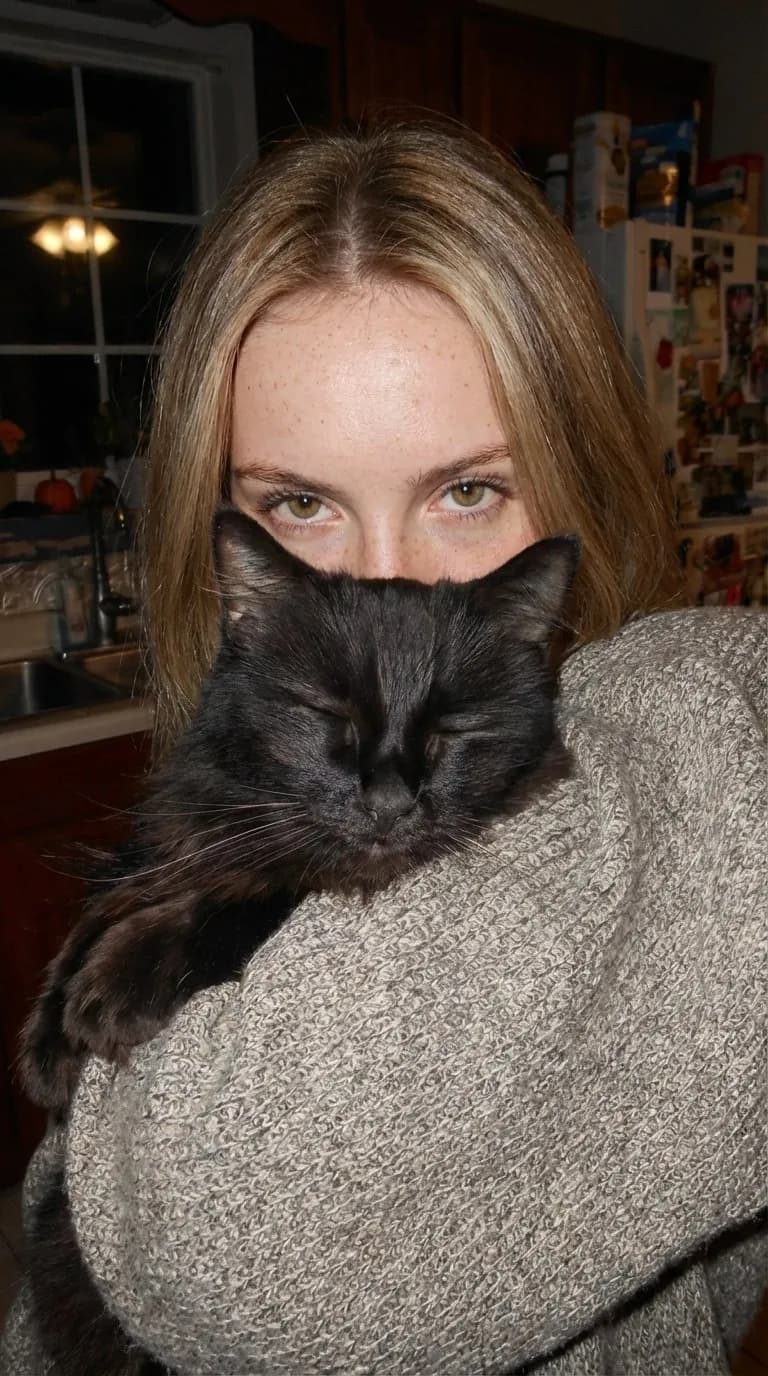
How to Copy Any Pose Onto Your AI Character
Upload a photo you like and get the same shot back with your character in it, with the same pose, framing and light. How Copy a pose works in Orior, which photos copy well, and how to change one detail.
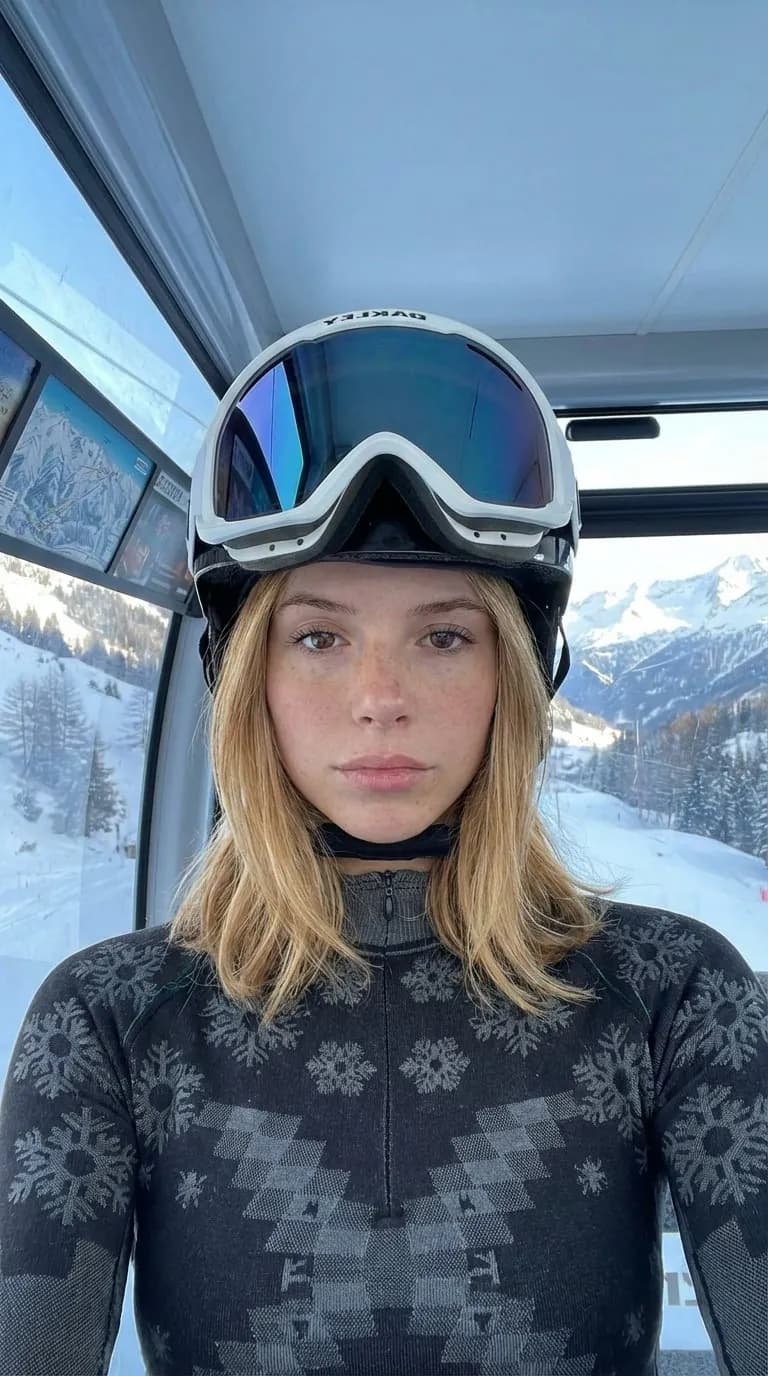
You saved a photo on Pinterest because of the pose, the angle and the light. Copy a pose gives you that same shot with your character in it. You upload the photo, pick your character, and Orior puts your character in place of the person in the photo.
How to do it
- Open Create image in Orior.
- On the Copy a pose card, upload or drop the photo. It takes JPG or PNG files under 10 MB.
- Pick your character, or upload a face photo to use once.
- Leave Describe your scene empty to copy the photo as it is, or write only what should be different.
- Pick a format and a quality, then press Create image.
The result goes to your Library. It costs the same as any other image: 1 credit at 2K, 2 credits at 4K.
What gets copied and what doesn't
Orior keeps the pose, the camera angle, the framing, the outfit, the background and the light from your photo. It doesn't flip the pose into a mirror image.
The face, the hair and the build come from your character, not from the person in the photo. The shot is borrowed. The person in it is yours.
Change one thing and keep the rest
Write only the difference, for example:
- wearing a black dress
- smiling, looking at the camera
- holding a coffee cup
- at night, with the street lights on
What you write wins over the photo. Everything you leave out stays as it was.
Need something specific, like a certain jacket? Add up to 4 extra photos. Each one gets a tag, @ref1, @ref2 and so on, and you can use the tag in your text: wearing the jacket from @ref1.
Pick photos that copy well
The photo you start from matters more than the words you add. These copy well:
- One person in the shot. With two or more people, it isn't clear who should be replaced.
- The whole pose in the frame. If the feet or hands are cut off in the original, they are cut off in yours.
- A visible face. If a phone or hair hides the face in the original, it will hide your character's face too.
- The same shape as your format. A vertical photo belongs in 9:16. Put it in 1:1 and the framing has to change to fit.
These are harder:
- Hands holding small things, or hands close to the face.
- A person who is tiny in a big landscape. There isn't much room in the frame for the face. If you like the shot, crop it closer before you upload it.
- Photos with a strong filter. The light and colors come with the photo, so the filter does too.
Copy a move from a video
Copy a pose works on photos. For video there are two ways to copy movement:
- In Create video, choose Copy motion and add the clip. Your character does the same moves. The price depends on how long the clip is.
- In Remix, some trending videos offer Replace the person: your character performs the same clip, with the same moves and camera. It shows up on clips with one person that run 4 to 30 seconds.
Use photos you're allowed to use
The source photo belongs to whoever took it, so post your result, not the original. And the face you put in it should be your own, a ready-made character, or someone who said yes.
From a chat app
If Orior is connected to ChatGPT, Claude or Grok Bot, you can do the same thing from the chat: share the photo and say put Mia in this, in a black dress. It is the same feature at the API price, 2 credits per photo or 3 at 4K. Here is how to connect it.